
Choosing between Incogniton and X-Browser is really a question of workflow. Both tools promise fingerprint protection and multi-profile isolation, but the way they approach the problem and the audiences they target are completely different.
Incogniton is built as a standalone, general-purpose anti-detect browser used by e-commerce operators, advertisers, agencies, and multi-account teams. X-Browser, on the other hand, is built for users who want a tightly integrated browser that plays nicely with Smartproxy (now Decodo)’s proxy stack.
If you’re scaling multiple accounts across platforms with different levels of scrutiny, the architectural and functional distinctions between these two tools become the deciding factor. What you’re choosing is not just features, it’s the stability of your long-term operation.
Below, we examine both browsers across the categories that matter most: fingerprinting, profile management, proxy handling, team features, automation, performance, pricing, and documentation.
Anti-Fingerprinting Technology
Incogniton provides full fingerprint customisation. Every profile gets an independent environment with configurable parameters such as canvas, WebGL, WebRTC, timezone, CPU, fonts, audio, media devices, and screen setups. You can generate fingerprints automatically or fine-tune them when dealing with platforms that perform deep checks (TikTok, Facebook, Google Ads, Etsy, Amazon, etc).
Its architecture isolates profiles from the host system, giving you stable, repeatable environments that don’t shift simply because your OS or Chrome version updates. That stability is crucial for long-term account warm-up and retention.
X-Browser uses Chromium-based fingerprint masking but keeps the experience very controlled. Fingerprints are generated automatically, and manual editing options are minimal. The goal seems to be simplicity, but that simplicity comes at the cost of granular control. You can’t manually override core fingerprint signals, and that limits how precisely you can tailor profiles for platforms that run aggressive browser checks.
Profile Management
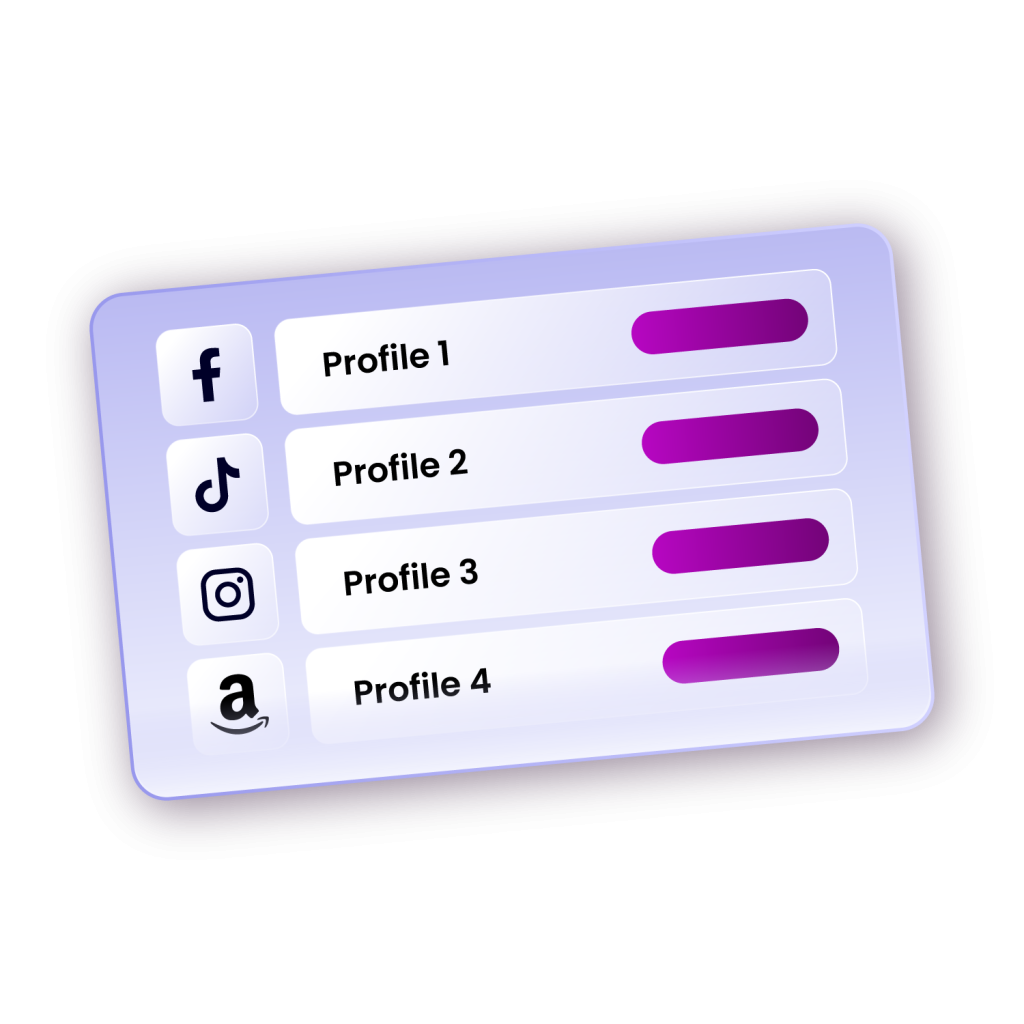
Incogniton treats each profile as a complete container. You can group, tag, clone, archive, favourite, export/import, or share them. Every data layer—cookies, cache, extensions, storage, browser history—stays isolated. When you’re managing dozens or hundreds of accounts, this structure prevents chaos. You can find things quickly, maintain order, and scale without losing control of your environment.
X-Browser has a more basic approach: profiles are independent and can store their own cookies and proxies, but the management system is far simpler. There’s no deep tagging, no flexible grouping, limited sorting, and fewer bulk operations. It works well for users handling low to medium volumes. Once you start running larger account sets, the limitations begin to show.
Performance and Reliability
Incogniton is generally stable. Profiles rarely corrupt. Data persists predictably. You can run many profiles at once, depending on hardware, and cloud sync behaves consistently. It is built on a Chromium core, so there are fewer or no compatibility issues with websites.
Profile startup times are typically faster because the browser doesn’t rebuild device templates from scratch every time. Profiles launch with preloaded settings, stored fingerprints, and pre-bound proxy data, which reduces friction during high-volume operations. The browser also supports hundreds of simultaneous profiles (depending on the user’s plan), without a hard cap on how many can run concurrently.
X-Browser is relatively lightweight and can perform acceptably for simple, short-term tasks; the underlying Chromium core keeps compatibility with most websites. However, Decodo recently announced that support for X-Browser will end on March 30, 2026, with no further updates planned.
As a result, relying on X-Browser for long-term, large-scale, or high-security operations becomes risky. No future bug fixes, security patches, or compatibility updates are guaranteed. For multi-account workflows that require stability over time, this sunset puts the reliability of X-Browser into serious question.
Proxy Integration
This is the X-Browser’s biggest selling point. Because it was built by Decodo (formerly Smartproxy), the browser integrates perfectly with their proxy stack. Note, however, that the Decodo docs state that as of March 30, 2026, support for X Browser is being retired. So this privilege may not last for much longer.
Incogniton, though not tied to a specific provider, still offers a robust proxy experience. It supports any HTTPS or SOCKS5 proxy; datacenter, residential, or mobile. It has a built-in proxy marketplace where you can shop for vetted proxies. In addition to all this, it comes with built-in free proxies, which help new users get started without upfront costs.
The seamlessness also extends to managing these proxies. Incogniton integrates proxy handling more deeply into the profile workflow. Every profile can store its own proxy settings, and you can test connectivity or monitor changes. Inside the dashboard, users can add, categorise, and bulk-import their proxy lists.
Team Collaboration Features
Incogniton’s edge over X-Browser shines even better here. X-Browser has team features, but they’re more basic. You can invite team members and share profile access, but permissions and management aren’t as granular as Incogniton.
Collaboration works, but it’s not designed for large-scale, high-volume team operations.
Incogniton was built with robust team features for agencies, marketers, growth teams, and client operations. Multiple users can work inside the same profile ecosystem without overwriting or corrupting each other’s data.
All profiles live in one centralised dashboard, and they can be organised, filtered, or shared. Team admins can share any browser profiles securely with their team members. They can also assign custom permissions like view-only, edit, or full access.
Incogniton’s sharing is built around workflow continuity: a team member can create a profile in the morning, share it instantly, and another member can pick it up from a different device without any extra handling.
Automation Capabilities
This is another area Incogniton outshines X-Browser. Incogniton supports both advanced and basic automation. Through its API integration with Selenium, Puppeteer, and Playwright frameworks, developers and technical users can spin up their custom workflows, control environments headlessly, and maintain stable fingerprints across large automated workflows.
Meanwhile, Incogniton also caters to non-technical users with features like the Synchronizer, which allows mirroring actions across multiple profiles/tabs, and Paste as Human Typing, which helps to achieve human-like keystroke behaviour for tasks like form filling or account setup.
X-Browser supports automation, but with constraints. You can automate flows using Smartproxy’s API ecosystem and third-party tools, but you don’t get the same fingerprint-stability guarantees or the same depth of automation controls.
Pricing and Value for Money
X-Browser has no standalone free browser plan of its own. You get access as part of Decodo’s paid proxy ecosystem. If you’re already spending on Decodo traffic, the browser feels like an added convenience. If you aren’t, the cost becomes harder to justify, especially if you are not really interested in using high volumes of proxies.
Incogniton operates a profile-based pricing; you pay for a set number of profiles, and you can run as many as you want at once. It offers one of the most generous free tiers in the professional market: 10 profiles with full fingerprint protection for two months. Its paid plans unlock deeper functionality, including team management, developer API access, and full automation capabilities.
Support and Documentation
Documentation for X-Browser exists but is limited. Much of it is tied to Decodo’s general proxy ecosystem rather than the browser itself. Support depends largely on Smartproxy’s ticketing system, and advanced workflow documentation is thin.
Incogniton provides a more structured support ecosystem designed to reduce onboarding friction for both technical and non-technical users. The Knowledge Centre includes step-by-step guides, troubleshooting material, and detailed FAQs written in straightforward language.
For users who learn visually, Incogniton maintains an active YouTube channel with tutorials on topics ranging from fingerprint configuration to setting up automation workflows. Developers also get access to well-maintained API and SDK documentation, which helps when integrating Incogniton into automated pipelines or custom tools.
In terms of access to support, the team offers fast responses through Telegram and email. Users frequently note shorter waiting times and clearer guidance, which helps during setup or when resolving technical issues.
Conclusion
As you can see, the difference between Incogniton and X-Browser comes down to what you’re optimising for.
X-Browser is built for users who want a clean, lightweight, proxy-integrated browser without needing to think too much about fingerprint details. If your workflow is small-scale or simple—running a few accounts, testing proxies, basic multi-account work—X-Browser will do the job without overwhelming you.
But once your operation grows, stability, fingerprint control, profile structure, and automation depth start to matter. That’s where X-Browser hits its ceiling. The limited fingerprint customisation, the reliance on Chromium’s fingerprint changes, the simpler profile management, and the light documentation make it hard to scale confidently.
Incogniton is built for people who need to operate reliably at scale. If you’re handling dozens or hundreds of accounts, managing clients, running ads, operating stores, or building automation workflows, you need the predictability and structure of a full anti-detect browser—not a proxy-focused companion app.
If you’re unsure, test both free options and see which one fits your workflow best.