

Step 1: Set up your Incogniton account
- Grab Incogniton from the official site. There’s a Windows build and a macOS build.
- Register if you haven’t already, then sign in.
Step 2: Get your Froxy credentials
- Sign in to your Froxy dashboard and pick which product you’re running. Residential, mobile, or datacenter.
- Sort out targeting and session type before you generate anything. Froxy does city-level and ISP-level targeting, and you can run either rotating or sticky sessions.
- Then copy the hostname or IP address, the port, the protocol (HTTP or SOCKS5), your username, and your password.
Step 3: Create a browser profile
- In Incogniton, open Profile Management and click New Profile.
- Name it after whatever account it’s going to hold. That habit pays off once you’re past a dozen profiles and trying to remember which is which.
Step 4: Add the proxy to your profile
- Open the profile’s Proxy section and type in what you copied. Incogniton’s proxy integration docs explain each field if anything looks ambiguous.
- Click Check Proxy. You want a live connection and the location you asked for. The proxy test also reports response time, which is worth a glance before you commit. Save once it passes.
Step 5: Launch the profile
- Click Start on the profile you just configured.
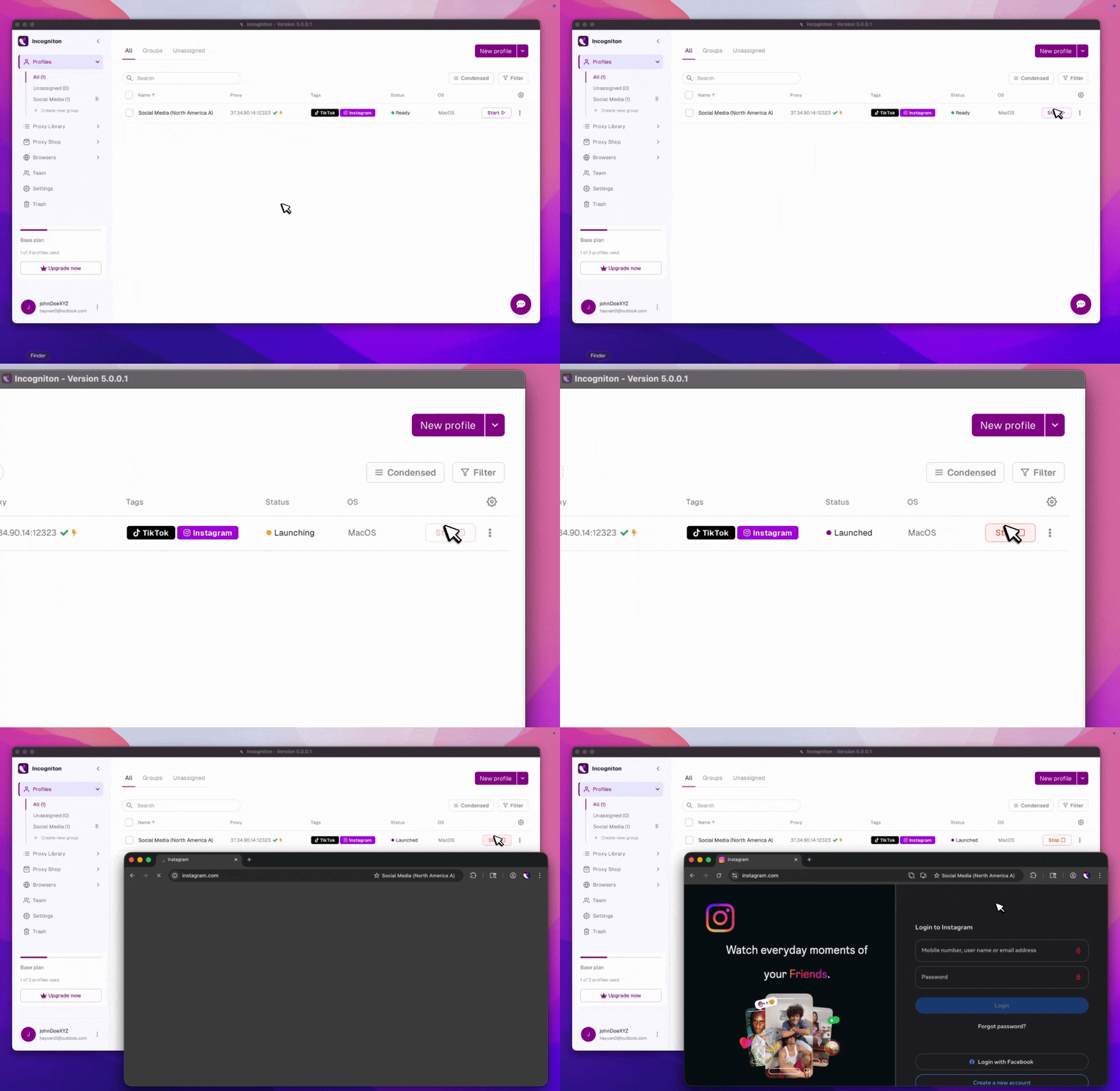
- Incogniton opens a browser window running that profile’s proxy and its own fingerprint settings.
Step 6: Verify the connection
- Open any IP checker inside the browser window. See whether the IP and location line up with what you configured in Froxy.

- If they do, you’re finished. That profile holds onto the same proxy and the same browser state every time you open it.
Conclusion
Every profile now opens on its own Froxy IP, carrying whatever session data and fingerprint settings it built up last time. You configure it once. Adding the next account means adding a profile, not repeating any of this. Prefer to buy proxies without leaving the Incogniton app? The Proxy Shop is built right in.

