
One accidental login is all it takes. A shared browser session, a reused cookie, or the wrong Google account selected at the wrong time can quietly link YouTube channels that were never meant to touch.
For creators, agencies, and brand managers, that risk grows every time you scale—more channels, more clients, more people accessing the same machine. And once accounts are connected, the damage is rarely reversible.
That’s the reality Incogniton was built for: managing multiple YouTube accounts from one place, without cross-contamination, credential sharing, or fragile browser workarounds. To YouTube, each profile looks like a completely different user on a completely different device. To you, they're all accessible from a single dashboard on one machine.
This guide explains how Incogniton makes multi-account YouTube management more efficient, more organised, and more scalable, and why it's a better solution than the workarounds most people start with.
The Problem with Managing Multiple YouTube Accounts
The challenge of running multiple YouTube channels isn't really about logging in. It's everything that surrounds it. Keeping track of which browser holds which account. Re-authenticating every time you switch. Sending credentials to a contractor and hoping they don't get shared. Trying to bring on a new editor without exposing your entire Google account. Doing the same repetitive task, checking analytics, updating descriptions, reviewing comments, across ten channels, one by one, manually.
None of these things is difficult in isolation. But they stack. And at any serious volume, the overhead of just navigating between accounts before you've done a single productive thing becomes its own part-time job.
People have found different ways to tackle this issue. They piece together a workflow from tools that weren't designed for this job. Let’s talk about some of them.
Multiple browsers are the first instinct. Chrome for one account, Firefox for another, Brave for a third. It works up to a point, usually around four or five accounts, before you run out of viable browsers. But there's no persistent session management, no team access layer, and no way to scale it further.
Incognito or private windows feel like a solution because they don't save browsing history. In practice, they change almost nothing about how your session is identified. The same device, the same IP, the same configuration, switching to a private tab doesn't create a new identity.
Chrome's built-in profile switcher is a step up for personal use. But it wasn't built for operational multi-account management. There's no proxy assignment per profile, no team permission controls, and no structured way to organise a large portfolio of accounts.
Separate physical devices, i.e, a different phone or laptop for each channel, is the only fully reliable DIY alternative. It works, but the cost scales with every account you add; there's no centralised place to manage everything, and handing a device to a team member is a blunt way to manage access.
These methods work, to varying degrees, for small-scale use. When the operation grows — more channels, more team members, more routine tasks — they stop being solutions and start being bottlenecks.
How Incogniton Helps
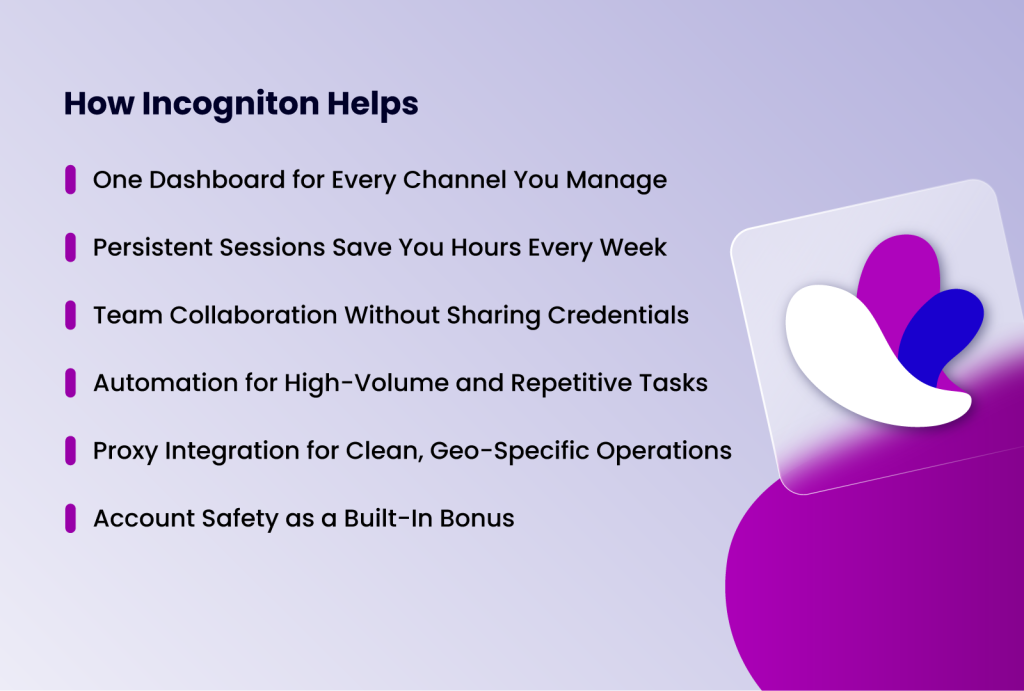
Incogniton is built for exactly the point where improvised setups break down. Rather than patching together multiple tools to approximate a workflow, it provides everything a multi-account YouTube operation needs in a single platform: isolated browser profiles, persistent sessions, team access controls, automation, and proxy integration. Here's how each of those works in practice.
One Dashboard for Every Channel You Manage
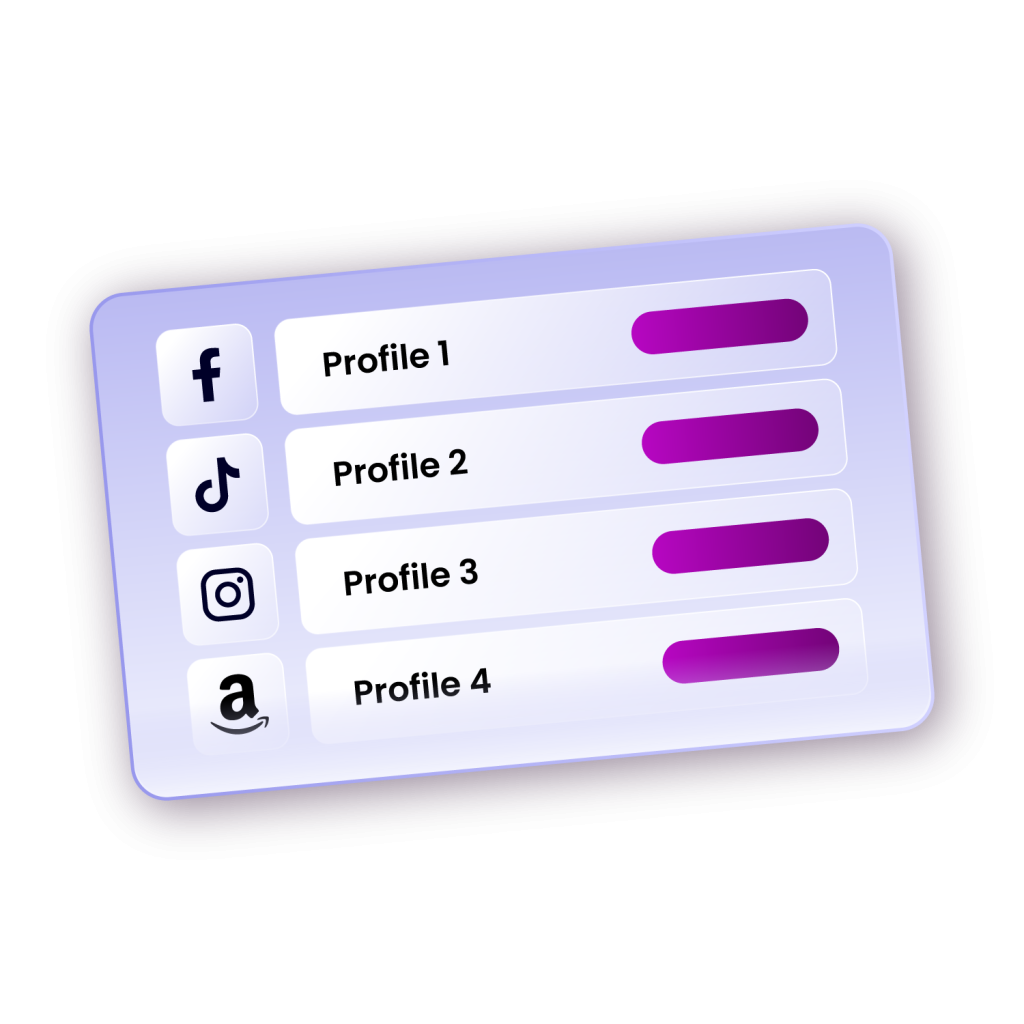
Every YouTube channel you operate lives as a named profile inside Incogniton's dashboard. You can organise profiles into groups — by client, by niche, by team member, by content vertical — and search across your entire library instantly. Notes, proxy details, and configuration settings live inside each profile record alongside the browser identity itself.
Most operators running multiple channels without a dedicated tool end up maintaining a spreadsheet to track which account lives where. That spreadsheet goes stale within weeks. Incogniton replaces it with a live, structured system where your entire channel portfolio is organised, searchable, and always current.
Persistent Sessions Save You Hours Every Week
Every Incogniton profile stores its own cookies, login session, and local data independently. When you open a profile, you're already inside YouTube Studio for that channel. You do not have to go through any login, two-factor authentication again. The session is exactly where you left it.
For someone switching between channels throughout the day, this alone recovers significant working time. The two to ten minutes lost on every manual account switch, multiplied across a full team and a full week, add up fast. Incogniton removes that cost entirely.
Team Collaboration Without Sharing Credentials
YouTube's native access management is limited. Outside of adding someone as a full channel manager, which requires linking their own Google account, the default most teams fall back on is sharing login credentials. Someone gets the email and password, and you trust them not to misuse it.
Incogniton handles this differently. Team members are granted access to specific profiles inside the dashboard, not to the underlying Google accounts. An editor opens the profiles assigned to them, works inside YouTube Studio as normal, and never sees the credentials behind the account. When they're done on a project, you remove their profile access. Nothing about the Google account needs to change.
For agencies managing client channels, this is the difference between a professional access management system and a recurring security liability.
Automation for High-Volume and Repetitive Tasks
For operators managing large numbers of channels, Incogniton's automation capabilities are where the platform shifts from convenient to transformative. Routine tasks that would otherwise require opening each profile and repeating the same steps manually can be automated and run across multiple profiles without ongoing manual input.
Incogniton supports automation through its built-in tools as well as integration with external automation platforms. The practical effect is that tasks which previously required hours of repetitive manual work become something you configure once and let run. Basically, you can use the synchronizer to run your analytics checking sequences on multiple accounts once. That's a genuine operational change, not just a small efficiency gain.
Proxy Integration for Clean, Geo-Specific Operations
Each Incogniton profile can be assigned its own dedicated proxy connection. For multi-account YouTube management, this has practical uses beyond isolation. If you're running channels targeted at different geographic markets, assigning region-appropriate proxies ensures each channel operates in the correct localisation context. So you can maintain things like language defaults, regional search behaviour, and analytics accuracy for each profile seamlessly.
It also means any connectivity issue with one proxy affects only that profile. The rest of your channels keep running. Incogniton supports HTTP, HTTPS, SOCKS4, and SOCKS5 proxies and integrates with all major proxy providers, with proxy details stored inside each profile, so the configuration is always ready.
Account Safety as a Built-In Bonus
Because every Incogniton profile carries its own distinct browser fingerprint and connects through its own proxy, your accounts appear as completely separate devices to YouTube and Google. There's no technical link between them, which means activity on one channel doesn't create risk for the others.
This isn't the primary reason most teams choose Incogniton — the efficiency and collaboration tools are. But it's a real benefit that comes with the setup automatically, with no extra configuration required.
Getting Started with Incogniton
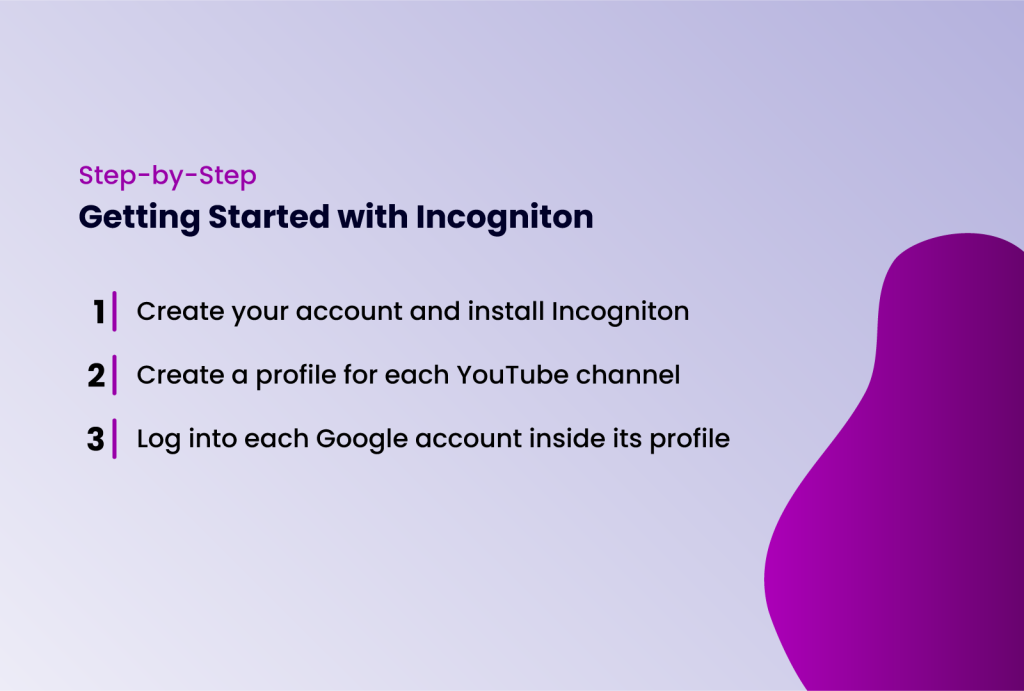
Setting up Incogniton for YouTube channel management is straightforward. Here's how to go from zero to a fully organised, team-ready operation.
Step 1: Create your account and install Incogniton.
- Visit the official Incogniton website, download the application, and install it
- Create an account if you don’t already have it.
- Incogniton offers a free plan that allows up to 10 browser profiles, which is sufficient to get started. For larger operations, paid plans unlock unlimited profiles and additional features like profile syncing and team collaboration.
Step 2: Create a profile for each YouTube channel.
- For every channel you manage, create a new browser profile inside Incogniton.
- Give it a clear name. Ideally, it should match the channel name or client name, so it's immediately identifiable in your dashboard.
- Inside the profile settings, add the proxy connection you want that profile to use. You can make use of the free unblocked proxies that come with Incogniton or add your own.
- Incogniton will automatically generate a realistic browser fingerprint for the profile, but you can also manually customize parameters such as operating system, screen resolution, language, and time zone to ensure consistency with the account's registered location.
Step 3: Log in to each Google account inside its profile.
- Open each profile and log in to the corresponding Google account.
- Complete any verification steps as you normally would.
- Once you're inside YouTube Studio, you can do whatever you want to do.
Once you've completed the steps above and logged into your channels, you can go ahead and set up the rest of your workspace, too. That includes organising your dashboard, adding your team members, and setting up automation systems.
Conclusion
Managing multiple YouTube channels doesn't have to mean managing complexity. The friction that comes with improvised multi-account setups, constant re-authentication, credential sharing, disorganised access, and no automation is an infrastructure problem. Incogniton is the infrastructure solution.
With dedicated browser profiles, built-in proxy support, team permissions, and automation capabilities, everything you need is in one place. Once it's set up, the complexity disappears. You spend less time managing access and more time managing content. That's the difference a proper system makes. Start your free Incogniton account today and set up your first profile in under 5 minutes.