
Millions of people reach for an incognito or private browsing tab the moment they want a little breathing room online. Whether it's shopping for a gift, researching something sensitive, or just keeping things off the family iPad, private tabs have become the go-to privacy move for everyday users. And if you're on Apple devices, there's a good chance you're using Safari's version, partly out of habit, but also because Apple has built a genuine reputation for taking user privacy seriously.
That reputation isn't unearned. Apple has made privacy a core part of its brand for years, from App Tracking Transparency to Intelligent Tracking Prevention, and Safari sits at the centre of that promise. So when users fire up a Private Browsing window, there's a reasonable assumption that they're well protected.
But here's where things get uncomfortable: over 10% of the world's most visited websites are already using browser fingerprinting, a tracking method that doesn't rely on cookies or saved data at all. It reads the technical makeup of your browser and device, and identifies you with 95–99% accuracy. Private Browsing does almost nothing to stop it. And in early 2025, Google officially gave the advertising industry the green light to lean on fingerprinting even harder.
So the question is worth asking plainly: how much does Safari's Private Browsing actually protect you?
Understanding Safari's Private Browsing: What It Does and What It Doesn't
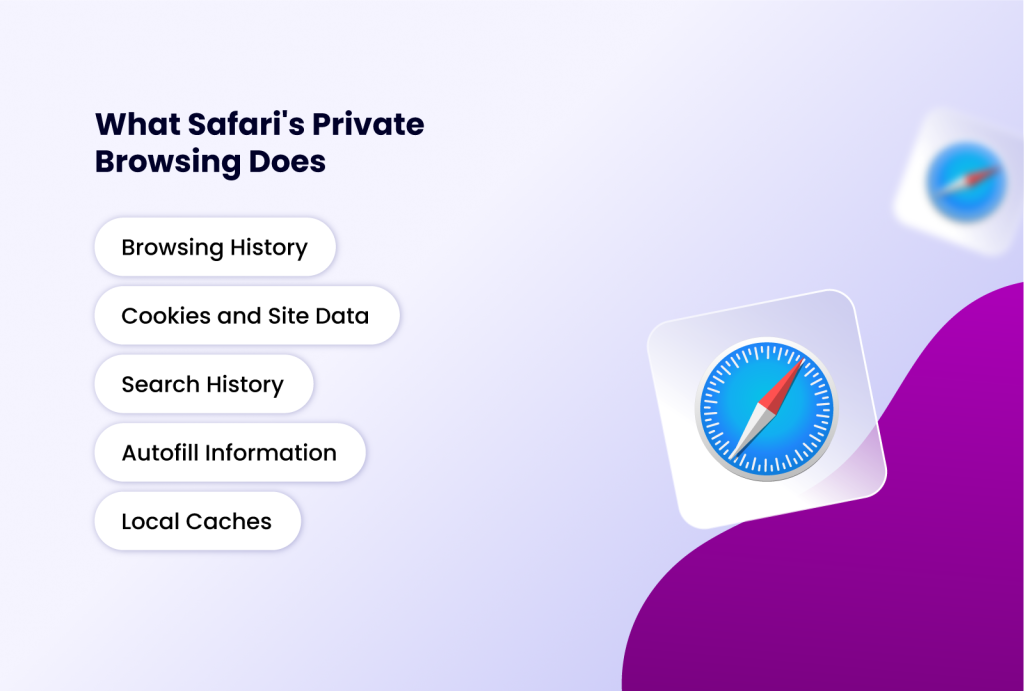
First, let's clarify what Safari's Private Browsing mode actually does.
Before getting to Apple’s new fingerprinting feature, it helps to understand what Private Browsing in Safari has always done — and what it hasn’t.
When you activate it (via File > New Private Window or Shift+Command+N), Safari initiates a temporary, isolated browsing session. Its primary function is to prevent data from being stored locally on your Mac, iPhone, or iPad.
Here’s what it effectively hides and clears upon closing the window:
- Browsing History: The list of websites you visit is not saved to your local history log.
- Cookies and Site Data: Session cookies and other website data are created temporarily for the site to function, but are deleted when you close the Private window. This prevents sites from using stored cookies to recognize you on a return visit from the same browser profile.
- Search History: Your searches are not saved in the browser's autofill suggestions.
- Autofill Information: Data you enter into forms is not saved.
- Local Caches: Files, images, and resources from websites are not permanently cached.
This local clean-up is perfect for its intended purpose: preventing the next person who uses your device from seeing what you were doing. It's a powerful tool for maintaining privacy on a shared computer and for preventing websites from leveraging your stored cookies for basic cross-site tracking within that single session.
However, as we explored in a previous article, "Unmasking Incognito Browsing: What’s Covered and What’s Not," this protection is fundamentally local. Your activity is not invisible to the outside world. Your internet service provider (ISP), your network administrator (if on a work or school network), and the websites you visit themselves can still see your traffic. Private Browsing is a shield against local snooping, not a cloak of online invisibility.
Apple’s Answer: Advanced Tracking and Fingerprinting Protection
Introduced with iOS 17 and macOS Sonoma, Advanced Tracking and Fingerprinting Protection is Apple’s most ambitious privacy move to date. It’s enabled by default for Private Browsing sessions, and can be extended to all browsing via Settings > Safari > Advanced > Advanced Tracking and Fingerprinting Protection.
What it actually does is inject “noise” into the key fingerprinting signals that websites use to identify your browser. The affected vectors include 2D Canvas rendering, WebGL, Web Audio, and Screen and Window geometry — all of which are commonly harvested by fingerprinting scripts to build a stable picture of your device. By making those signals less consistent, Apple’s feature makes them harder to use as reliable identifiers.
The feature also strips tracking parameters from URLs automatically as you browse or copy links, removing the kind of tags that advertisers use to track your journey across campaigns and platforms.
Credit where it’s due: this is a genuine and meaningful step beyond what any mainstream browser had previously attempted at the OS level. Apple deserves recognition for shipping it. But there’s an important distinction that the marketing glosses over: adding noise to your fingerprint is not the same as controlling your fingerprint. And that gap matters more than Apple lets on.
The Real-World Problems With This Feature
Beyond the conceptual limitations, Advanced Tracking and Fingerprinting Protection has a set of practical, documented problems that affect everyday users. Here’s what the feature page doesn’t mention.
It breaks websites
The feature triggers a repeated warning: If this page is not displaying as expected, you can reduce advanced privacy protections, which may resolve issues,” every time an affected page reloads. There is no way to suppress this message. Users report broken images, missing icons, and pages failing to render correctly, particularly on streaming and media-heavy sites. The feature also throttles canvas operations, causing performance issues on pages with multiple canvas elements or WebGL content.
It breaks Safari extensions
If the feature detects and blocks even one known tracker on a page, it also blocks every third-party script on that page, including legitimate ones and Safari extensions, from accessing the URL query string. Extensions that rely on query strings for core functions simply stop working correctly, with no clear indication to the user why.
It routes DNS through Apple
The feature routes DNS queries through Apple’s own DNS servers, bypassing any custom DNS configuration you may have set up. For users who rely on custom DNS for security filtering, parental controls, or network management, this is a silent, significant disruption.
No granular control
The setting offers exactly three states: off, private browsing only, or all browsing. You cannot whitelist specific sites, tune the noise level, or choose which fingerprinting vectors to protect. As one developer put it bluntly: “Typical Apple solution — no fine-grain control.” For a feature this disruptive, the all-or-nothing design is a significant limitation.
Does the Fingerprinting Protection Actually Work?
The noise injection approach is technically clever. But researchers have already poked holes in it.
Take audio fingerprinting: Safari 17 adds random noise to audio samples to disrupt the signal. The problem is that the range of noise Apple adds is actually much larger than the typical variation between fingerprints produced by different browsers. A sufficiently refined algorithm can filter out that noise as an outlier and recover a stable identifier underneath it.
Canvas and WebGL noise have similar limitations. It reduces the reliability of fingerprinting without eliminating it, raising the cost for a determined tracker without making the goal impossible.
The feature also relies on a list of “known trackers” to trigger certain protections. Novel or unlisted fingerprinting scripts fall outside that list entirely and are unaffected. Bottom line: Advanced Tracking and Fingerprinting Protection raises the cost of fingerprinting you. For most casual trackers, that cost may be prohibitive. For a determined, sophisticated actor, it isn’t.
What Safari’s Approach Gets Fundamentally Wrong
Apple’s model is reactive and passive. It tries to degrade the signals that websites can read from your existing browser identity. The core problem is that you still only have one browser identity in Safari, noisy or not.
Every Private Browsing session in Safari still originates from the same underlying device: the same hardware, the same Apple account signals, the same timezone and locale. The noise changes the quality of what can be read. It doesn’t change the fact that there’s only one thing to read.
For a casual user who just wants less ad tracking on news sites, this is probably fine. The feature does reduce passive tracking at scale.
But for anyone who needs to operate as genuinely different users online, marketers managing multiple ad accounts, researchers who can’t have their queries linked, e-commerce operators running split tests, multi-account managers in social media or affiliate work — degrading your single identity doesn’t help. You still only have one identity to degrade.
What’s actually needed in those cases isn’t a noisier fingerprint. It’s the ability to create and control multiple distinct fingerprints — one per purpose, per account, per context. That’s a fundamentally different problem, and it requires a fundamentally different class of tool.
How to Achieve Real Protection Against Fingerprinting
If Safari's Private Browsing isn't enough, what can you do? Effective protection requires tools that operate at the same level as the threat. Anti-detect browsers are purpose-built for this battle.
Unlike Private Browsing, which leaves your core fingerprint intact, anti-detect browsers like Incogniton create isolated browser profiles, each with its own synthetic, consistent, and realistic browser fingerprint.
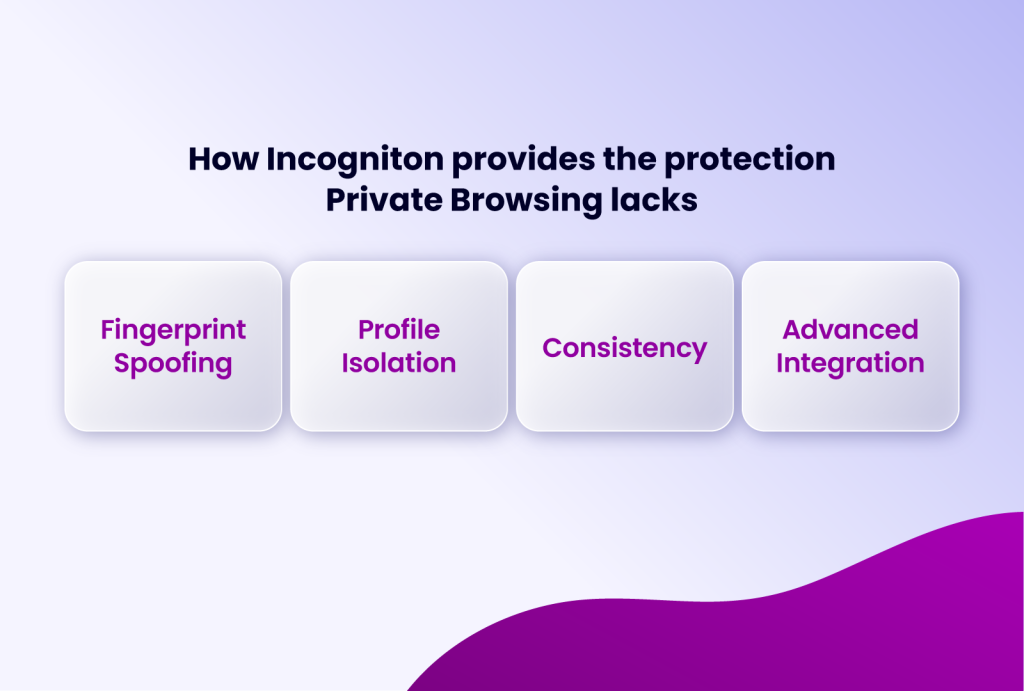
How Incogniton provides the protection Private Browsing lacks:
- Fingerprint Spoofing: It actively modifies the key parameters fingerprinters seek—user agent, screen resolution, fonts, Canvas and WebGL output, time zone, and more—for each profile.
- Profile Isolation: Each profile (e.g., one for social media, one for work, one for shopping) has a completely different, persistent fingerprint. Activity in one cannot be linked to activity in another.
- Consistency: The spoofed fingerprint remains the same each time you use that specific profile, allowing for convenient logins without raising red flags, while being entirely different from your real device fingerprint.
- Advanced Integration: It combines this with proxy to mask your IP address and geolocation, providing a holistic privacy solution.
Conclusion
Safari’s Advanced Tracking and Fingerprinting Protection is the right tool for one specific job: reducing passive ad tracking during everyday browsing on your personal device. It’s a meaningful improvement for that use case.
It is the wrong tool for:
- Managing multiple accounts across the same platform without cross-contamination
- Appearing as a user in a different location or on a different device
- Isolating separate online identities for professional or research purposes
- Any workflow that requires genuine identity separation, not just identity degradation
For true anonymity and robust protection against fingerprinting, you need tools that fight fire with fire. This means using browsers and solutions designed to mask and manage the digital fingerprint you present to the world. By leveraging dedicated privacy tools or an anti-detect browser like Incogniton, you move beyond simply cleaning up after yourself and begin actively controlling the identity you project online, finally achieving the privacy that Private Browsing alone can only promise.