Step 1: Create and Sign In to Your Incogniton Account
If you already have an Incogniton account, you can skip this section. Otherwise, follow the instructions below to create an Incogniton account:
- Visit the Incogniton website and navigate to the Download page.
- Choose your device’s operating system (Windows or macOS).
- Install the application by following the on-screen instructions.
- Navigate to the Pricing page on the Incogniton site.
- Select a plan — Free, Starter Plus, Entrepreneur, Professional, or a custom package. The free tier is a suitable starting point for new users.
- Create your account by entering the required details. Your login credentials will be emailed to you.
- Launch the Incogniton app and sign in.
Note: For assistance during setup, contact [email protected].
Step 2: Create Your ProxyWing Account
To begin using ProxyWing, set up your account and purchase the proxy package you need. Here are the simplified, consolidated steps:
1. Register or Log In: Visit the ProxyWing website and create an account using your email, name, and password. If you already have an account, simply log in.
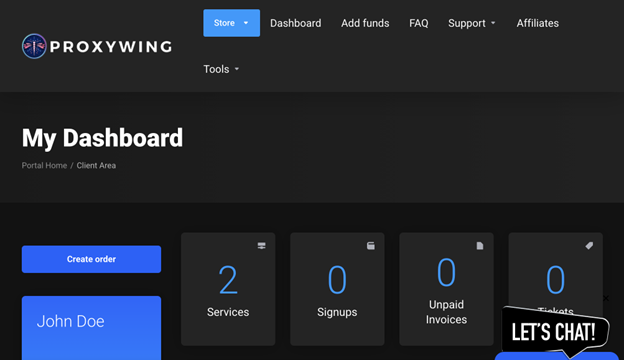
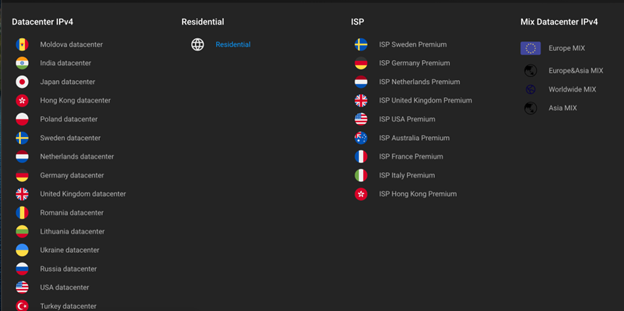
2. Choose a Proxy Package and Checkout: Go to the Store section in your dashboard and select the proxy you want from the available categories: Residential, ISP, Datacenter, or Mixed Datacenter. Choose your preferred country or region and specify the number of IPs or the amount of traffic you need (where necessary). Proceed to checkout.
3. Complete Payment & Access Proxies: Pay using your preferred method (credit card, PayPal, or crypto, etc). Once payment is confirmed, your proxies will appear instantly in your dashboard, ready to be copied and used.
Step 3: Configure Your ProxyWing Proxy
Inside the ProxyWing dashboard:
- Select your preferred proxy type.
- Choose your desired location. ProxyWing provides broad international coverage.
- Decide whether you want rotating IPs or static/long-session IPs.
- Once generated, copy your proxy credentials in the host:port:username**:password** format.
Step 4: Add ProxyWing Proxy to Incogniton
After obtaining your credentials, integrate them within the Incogniton app.
1. Open Incogniton and go to Profile Management from the sidebar. Create a new profile if you do not have one.
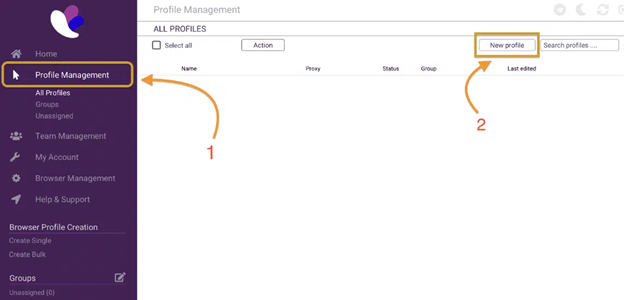
2. From the profile list, click the dropdown next to your desired profile, Select Edit, and then click Add Proxy on the edit screen.
3. Paste your ProxyWing proxy string (host:port:username**:password**) into the respective column.
4. Proceed to Check Proxy, and if the connection is successful, click Update Profile to save the proxy details.
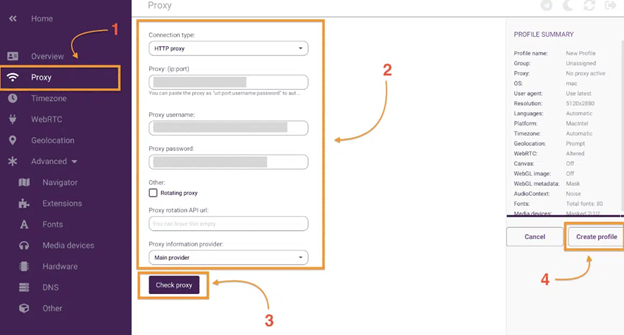
5. You can now assign this proxy to any of your browser profiles.
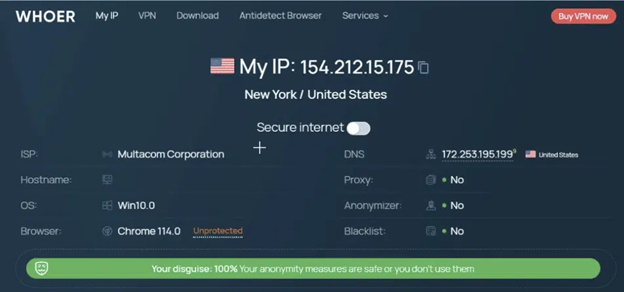
Note: To test your proxy configuration, you can use the whoer.net online tool as shown below.
Conclusion
You’ve now successfully connected ProxyWing to the Incogniton Anti-Detect Browser. This integration allows you to take advantage of ProxyWing’s reliable global proxy network while using Incogniton’s robust profile isolation. Ideal for multi-account workflows, advertising operations, automation, and secure web testing.
If you run into any issues along the line or need further help, contact Incogniton support at [email protected] or reach out to the ProxyWing support team for any proxy-related issues.