Why Use the Proxy Shop Instead of External Providers
With Incogniton
Buy, import, and assign proxies in one place
Eliminate manual setup and configuration errors
Keep all proxy activity inside your workflow
Scale faster with less operational friction
Without Incogniton
Manage multiple proxy providers manually
Copy and paste credentials into different tools
Troubleshoot formatting and connection issues
Lose time switching between platforms
What is the Incogniton Proxy Shop?
It is a built-in marketplace where you can purchase proxies directly in the Incogniton application. These proxies are automatically imported and ready to use.
Buying Proxies Shouldn’t Break Your Workflow
If you’ve worked with proxies before, you already know the friction.
You have to:
Search for providers across multiple websites
Compare pricing, locations, and formats manually
Copy and paste credentials into your browser
Test whether they even work with your setup
And even then, things can go wrong—wrong formats, unstable connections, or proxies that don’t match your profiles.
This is where most workflows slow down. Not because proxies are hard—but because managing them is fragmented.
Built-In Proxy Shop, Fully Integrated Into Your Workflow
Incogniton removes that entire layer of friction by bringing proxy purchasing directly into the app.
Instead of juggling external providers, you can:
Browse available proxies inside Incogniton
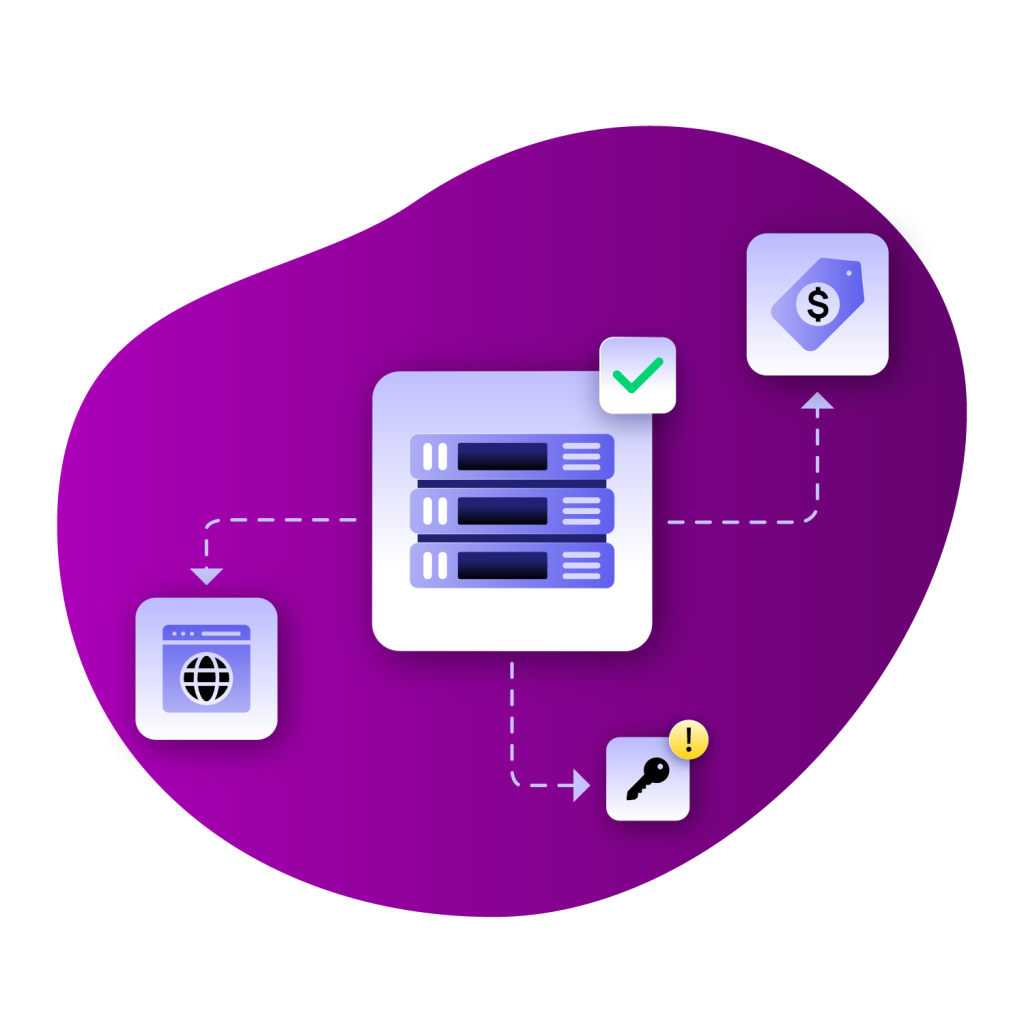
Choose type, location, and plan
Purchase and import instantly
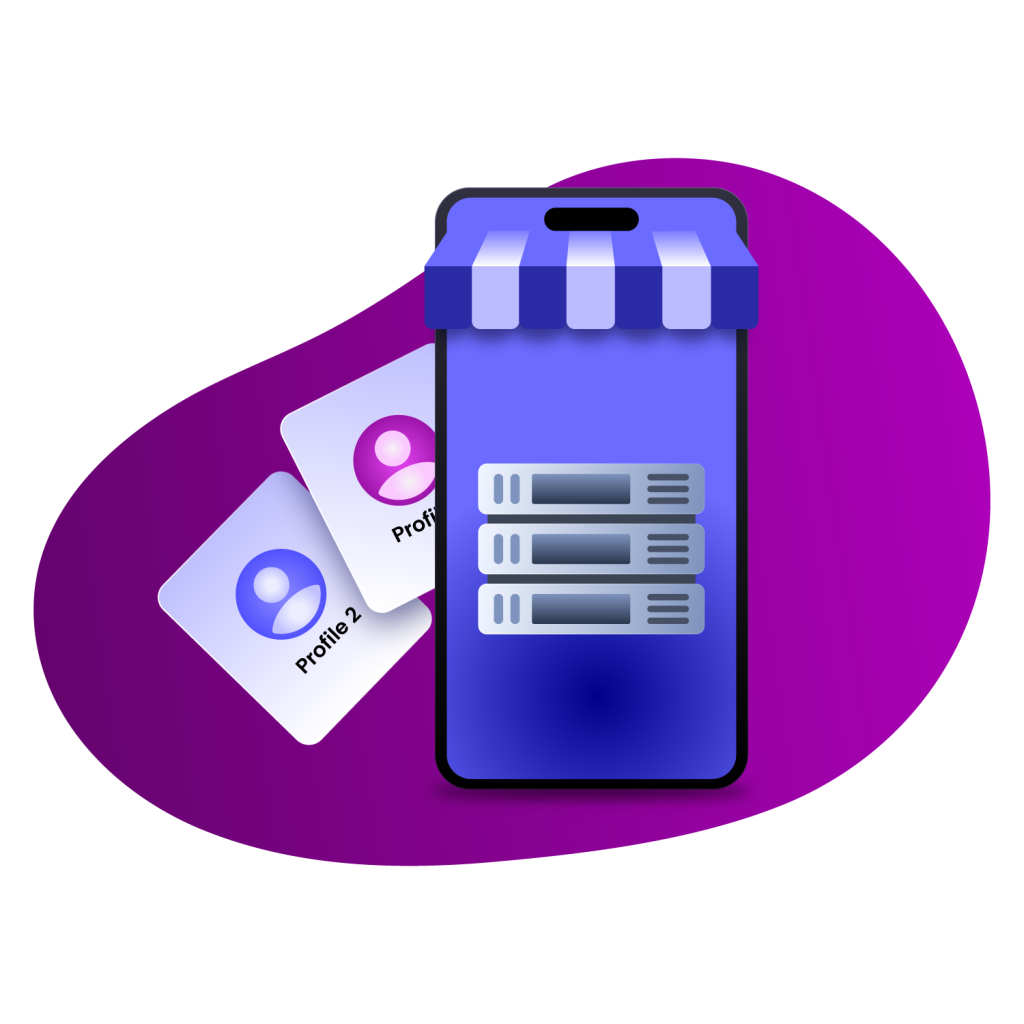
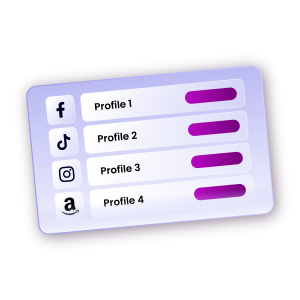
Assign proxies directly to browser profiles
There’s no manual configuration step. Once you buy a proxy, it’s automatically available inside your proxy manager and ready to use. This turns proxy management from a multi-step process into a single, controlled flow.
How It Works — From Purchase to Profile in Minutes
Do I need to configure proxies manually after purchase?
No. Once purchased, proxies are automatically added to your account. You can assign them to browser profiles immediately.
Can I choose proxy locations?
Yes. You can select geographic locations during purchase. This helps match proxies to specific account regions or workflows.
Are the proxies reliable?
Incogniton partners with reputable providers and tests proxies for performance and uptime. This ensures consistent and stable usage.
Can I use these proxies with browser profiles immediately?
Yes. After purchase, proxies are available in your proxy manager and can be assigned directly to any profile.
Do I still need external proxy providers?
Not necessarily. The proxy shop is designed to replace the need for external sourcing in most cases. However, you can still import your own proxies if needed.
Can I manage proxies in bulk?
Yes. Incogniton allows you to organise, group, and assign proxies efficiently. This is especially useful when managing many accounts.
Cookies
We use cookies to enhance site navigation, analyze site usage, and support our marketing efforts. You can accept all cookies or manage your preferences at any time.
Functional
Always active
The technical storage or access is strictly necessary for the legitimate purpose of enabling the use of a specific service explicitly requested by the subscriber or user, or for the sole purpose of carrying out the transmission of a communication over an electronic communications network.
Manage options
The technical storage or access is necessary for the legitimate purpose of storing preferences that are not requested by the subscriber or user.
Statistics
The technical storage or access that is used exclusively for statistical purposes.The technical storage or access that is used exclusively for anonymous statistical purposes. Without a subpoena, voluntary compliance on the part of your Internet Service Provider, or additional records from a third party, information stored or retrieved for this purpose alone cannot usually be used to identify you.
Marketing
The technical storage or access is required to create user profiles to send advertising, or to track the user on a website or across several websites for similar marketing purposes.
We use cookies to enhance site navigation, analyze site usage, and support our marketing efforts. You can accept all cookies or manage your preferences at any time.
Functional
Always active
The technical storage or access is strictly necessary for the legitimate purpose of enabling the use of a specific service explicitly requested by the subscriber or user, or for the sole purpose of carrying out the transmission of a communication over an electronic communications network.
Manage options
The technical storage or access is necessary for the legitimate purpose of storing preferences that are not requested by the subscriber or user.
Statistics
The technical storage or access that is used exclusively for statistical purposes.The technical storage or access that is used exclusively for anonymous statistical purposes. Without a subpoena, voluntary compliance on the part of your Internet Service Provider, or additional records from a third party, information stored or retrieved for this purpose alone cannot usually be used to identify you.
Marketing
The technical storage or access is required to create user profiles to send advertising, or to track the user on a website or across several websites for similar marketing purposes.