
Open Chrome, Firefox, or Safari right now, and something unremarkable happens: a program on your device boots up, eats into your RAM and CPU, and gets you online. You don't think twice about it. Browsers have worked this way since the 90s - local, on your hardware, always.
But a quiet shift has been gaining momentum in the tech world. What if the browser didn't run on your machine at all? What if it ran on a powerful server somewhere in a data centre, and your device simply displayed the result, like streaming a video, except what you're streaming is an interactive web session?
That's the core idea behind cloud browsers. And while it might sound futuristic or niche, recent trends show a significant shift towards cloud-based solutions, with the global cloud computing market projected to exceed $1 trillion by 2028, a growth fueled by the demand for more flexible and secure digital tools.
In this landscape, understanding the difference between a cloud browser and the familiar browser you already use is genuinely worth your time.
What is a Cloud Browser?
A cloud browser is a web-browsing environment that runs remotely on a server in a data centre, not on your local device. When you use a cloud browser, you are essentially streaming a visual representation of a browsing session to your screen.
All the heavy lifting—rendering web pages, executing JavaScript, processing data—happens on powerful remote servers. Your device acts as a thin client, sending inputs (like clicks and keystrokes) and receiving screen updates.
This architecture stands in stark contrast to a traditional browser (like Chrome, Firefox, or Safari installed on your computer), which uses your device's own CPU, GPU, RAM, and storage to load and process every website you visit.
How Does a Cloud Browser Work?
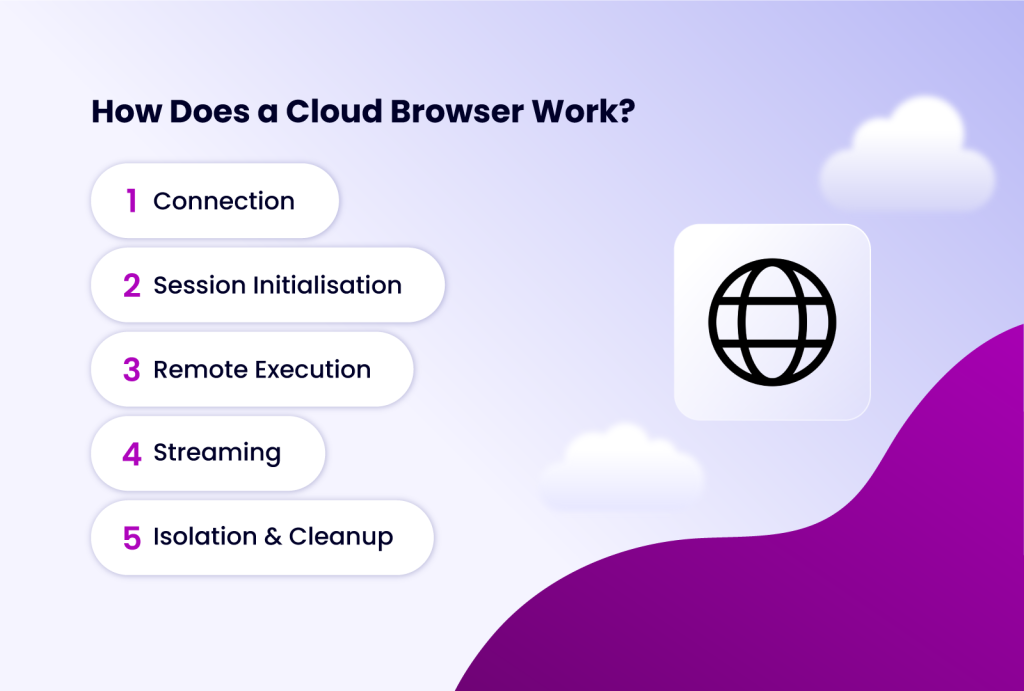
The process is similar to streaming a movie from Netflix:
- Connection: You access the cloud browser service via a client application or a web portal.
- Session Initialisation: The service spins up a fresh, isolated virtual machine (VM) or container on a remote server, complete with a dedicated operating system and browser instance.
- Remote Execution: You navigate the web within this remote environment. Every action is processed on the server.
- Streaming: The server compresses the visual output (the browser window) and streams it back to your device in real-time.
- Isolation & Cleanup: At the end of your session, the entire virtual environment is destroyed, erasing all cookies, cache, and any potential malware encountered during the session.
This fundamental shift in where the processing occurs unlocks a suite of unique advantages and considerations.
How a Normal Browser Works
Before going further, it's worth making the contrast concrete. A traditional browser like Chrome, Edge, Safari, or Firefox is a locally installed application. When you visit a website, your browser:
Makes DNS lookups and TCP connections directly from your device. Downloads HTML, CSS, JavaScript, and media assets to your machine. Parses and renders all of that content using your local CPU and GPU. Executes JavaScript in your device's memory. Stores cookies, caches, and browsing history on your local drive.
Everything happens on your hardware, in your operating system's memory, using your internet connection. The browser is deeply integrated with your local environment — it can access hardware APIs, local files (with permission), installed extensions, and system fonts.
This architecture has worked well for decades. It's fast, low-latency, and doesn't require a constant network connection to function. But it comes with tradeoffs that cloud browsers are specifically designed to address.
Key Differences: Cloud Browser vs. Normal Browser
To fully appreciate the impact of cloud browsing, let's break down the comparison across several critical dimensions.
| Feature | Cloud Browser | Traditional (Normal) Browser |
| Processing Location | Remote server (cloud). | Local device (your computer/phone). |
| Device Resource Usage | Very low. Only handles input/output streaming. | High. Uses local CPU, RAM, GPU, and storage. |
| Security & Isolation | Excellent. Threats are contained in the disposable cloud environment. No local data exposure. | Variable. Depends on user hygiene. Malware can infect the local system. |
| Privacy & Fingerprinting | Superior. Each session can have a unique, spoofed browser fingerprint and IP address (via proxy). | Vulnerable. Presents your device's real, persistent fingerprint to every site. |
| Performance | Server-dependent. Excellent for low-power devices; potential latency with poor internet. | Device-dependent. Fast on capable hardware; slows down older machines. |
| Access & Portability | Access from any device with a basic browser and internet. Session state is cloud-based. | Tied to the device where it's installed. Syncing (bookmarks, history) requires additional setup. |
| Multi-Account Management | Native and secure. Create fully isolated browser profiles for each account. | Cumbersome. Requires constant logging in/out, using guest modes, or risky profile switching. |
| Automation & Development | Ideal for scalable, parallel testing and automation without local resource constraints. | Relies on local tools (Selenium, Puppeteer); limited by local machine power. |
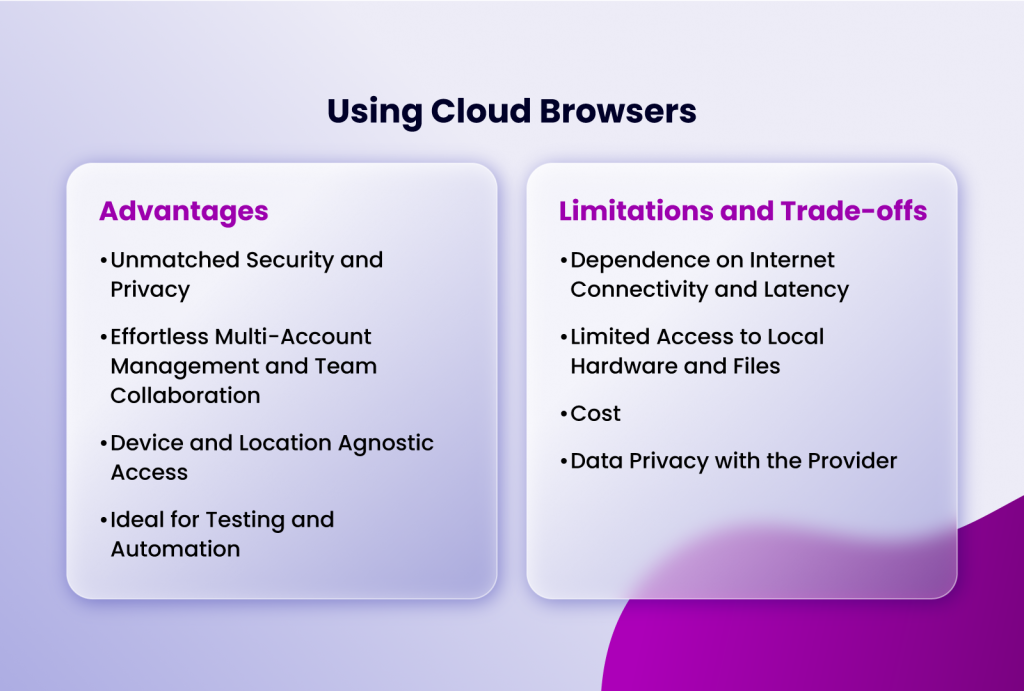
Advantages of Using Cloud Browsers
Here are some advantages of using cloud browsers.
Unmatched Security and Privacy
One of the most compelling arguments for cloud browsers is security isolation. With a normal browser, if you visit a malicious website that exploits a browser vulnerability or delivers malware, the threat has a direct path to your operating system, files, and network. Browser sandboxing helps, but it's not foolproof — especially with zero-day exploits.
A cloud browser adds an entirely different layer of protection. The malicious content executes on a remote server, not your machine. Even if the cloud browser environment is compromised, your local device is untouched. When the session ends, the remote environment is typically wiped clean and reset. The threat never crosses the network boundary into your actual computer.
Effortless Multi-Account Management and Team Collaboration
For digital marketers, e-commerce sellers, or social media managers, this is a game-changer. You can run multiple accounts on the same platform (e.g., 10 different Facebook ad accounts) simultaneously without triggering "suspicious activity" flags.
Each cloud browser profile maintains completely separate cookies, local storage, and login sessions. Furthermore, as detailed in our article on browser session sharing, tools like Incogniton allow teams to securely share access to these cloud profiles, enabling seamless collaboration without ever sharing passwords.
Device and Location Agnostic Access
Your browsing power is no longer limited by your hardware. You can start a resource-intensive session on a high-powered cloud server from a lightweight Chromebook, an old tablet, or even a library computer. Your sessions, bookmarks, and configurations are stored in the cloud, allowing you to pick up exactly where you left off on any device.
Ideal for Testing and Automation
Perhaps the most exciting emerging use case for cloud browsers is AI-powered automation. As AI agents become more capable of browsing the web autonomously, they need a browser environment they can control programmatically.
Local browsers can be automated using tools like Selenium or Playwright, but this requires the right environment, dependencies, and setup on whatever machine the AI agent is running on. Cloud browsers abstract all of this away. An AI agent can simply call an API, spin up a browser session in the cloud, and start interacting with the web — all without any local browser setup required.
Developers and QA teams can use cloud browsers to test websites across dozens of different browser/OS combinations without maintaining a physical lab of devices. When combined with browser automation tools, cloud browsers enable massively parallel testing and data scraping workflows
Limitations and Trade-offs of Using Cloud Browsers
Cloud browsers introduce tradeoffs that are worth understanding clearly. Here are some of them
Dependence on Internet Connectivity and Latency
This is the most significant drawback. Without a stable, fast internet connection, a cloud browser is unusable. Even with good internet, there can be perceptible latency (a delay between your click and the response) because every input must travel to the remote server and back. This makes them less ideal for real-time, reaction-sensitive tasks like competitive gaming.
Limited Access to Local Hardware and Files
Cloud browsers cannot directly access your local webcam, microphone, USB drives, or printers without explicit and often complex permission passthrough. Uploading and downloading files involves an extra step of transferring data between your local machine and the cloud server.
Cost
While basic cloud browser services exist, professional-grade solutions with advanced fingerprinting, proxy support, and automation capabilities typically operate on a subscription model. However, this cost is often offset by the value gained in security, productivity, and the avoided need for expensive local hardware.
Data Privacy with the Provider
You are entrusting your browsing data to the cloud browser service provider. It is crucial to choose a reputable provider with a clear, strict no-logs policy and robust encryption for data in transit and at rest.
When Should You Use a Cloud Browser?
- Managing Multiple Social Media or E-commerce Accounts: To avoid bans and keep accounts completely separate.
- Affiliate Marketing and Ad Verification: To check how ads and landing pages appear from different global locations and user profiles.
- Web Scraping and Data Collection: To run multiple, parallel scraping sessions without being blocked, using rotating proxies and fingerprints.
- Accessing Geo-Restricted Content: To safely browse content limited to specific regions (e.g., streaming services, local news).
- Security-Conscious Browsing: When you need to visit potentially risky websites or need an extra layer of anonymity.
- Software Testing and Development: For cross-browser compatibility testing on a large scale.
- Working from Low-Power or Locked-Down Devices: Such as public computers, school Chromebooks, or corporate machines with strict install policies.
When is a Traditional Browser Still the Best Choice?
- Daily Personal Browsing: For casual web surfing, shopping on your primary accounts, and accessing trusted services.
- Performance-Sensitive Tasks: Online gaming, high-frame-rate video editing, or using WebGL-intensive applications where latency is critical.
- Offline Work: Any activity that requires access to web apps or documents without an internet connection.
- Tasks Requiring Deep Hardware Integration: Such as video conferencing (using your local webcam/mic), printing directly, or using hardware security keys.
Conclusion
The choice between a cloud browser and a traditional browser is no longer binary; it's strategic. The traditional browser remains the versatile, high-performance workhorse for everyday, trusted tasks on your personal device. The cloud browser, however, has emerged as an indispensable specialist tool for the modern web's complexities—where privacy, security, scale, and identity separation are paramount.
As tracking technologies become more invasive and online business models demand multi-account operations, the limitations of a single, fingerprintable local browser become glaring. Embracing cloud browsing technology, particularly through advanced anti-detect platforms like Incogniton, allows individuals and businesses to reclaim control. It enables you to define your terms of engagement with the digital world, turning the internet from a space where you are constantly observed into a tool you can wield with precision and safety.
The future of browsing is not about one replacing the other, but about knowing which tool to use to build, protect, and grow your online presence effectively.