
Multi-account management workflows are rarely static. Accounts are logged into repeatedly, reused across sessions, and often operated over long periods. In these conditions, consistency matters, not just at the profile level, but at the network level as well.
While browser isolation handles identity separation, the quality and behavior of the underlying network determine how predictable those sessions remain over time. Frequent IP changes or unstable locations can introduce variability that complicates otherwise clean setups.
NodeMaven is built with this reality in mind, providing residential and mobile proxies optimized for persistent use. With 30M+ residential IPs and 250K+ mobile IPs across 150+ countries, it supports workflows that benefit from stable, reusable network identities.
What NodeMaven Provides
NodeMaven offers residential and mobile IPs that fit naturally into Incogniton’s proxy‑per‑profile model. Its infrastructure is designed for scenarios where browser profiles are reused over time and require predictable network behaviour.
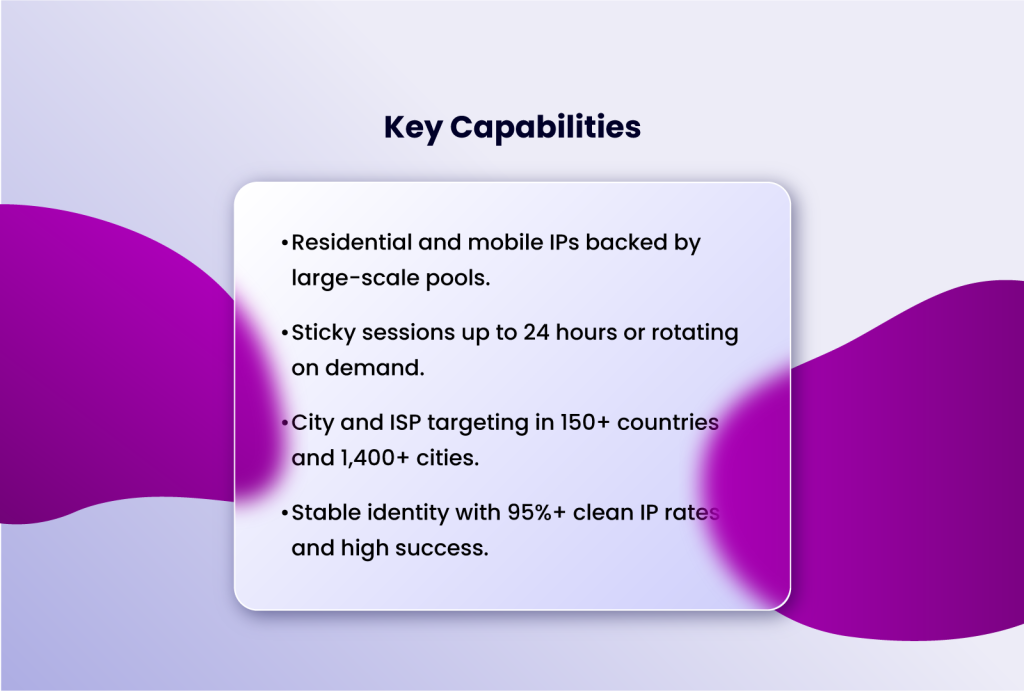
Key capabilities include:
- Residential and mobile IPs suitable for long‑running browser profiles, backed by large‑scale IP pools
- Sticky sessions lasting up to 24 hours, or rotating behaviour depending on task requirements
- City‑ and ISP‑level targeting across 150+ countries and 1,400+ cities
- Stable identity signals with reported 95%+ clean IP rates and high success rates across sessions
This allows users to keep Incogniton browser profiles unchanged while adjusting only the network layer when needed.
Who NodeMaven Is Best For
NodeMaven is best suited for users who depend on stable browser sessions and controlled geographic identity. This includes affiliate marketers, e‑commerce operators, agencies, and teams running regional or account‑based workflows where profiles are reused over extended periods.
It may be less suitable for short‑lived, high‑frequency scraping tasks where rapid IP churn is the primary requirement rather than session continuity.
How NodeMaven Complements Incogniton
Incogniton manages browser identity at the profile level — fingerprints, storage, cookies, and session behaviour. NodeMaven defines how each profile connects to the web by supplying the network identity.
Used together, this separation makes workflows easier to control and maintain. Browser profiles can remain stable and reusable, while network settings can be adjusted independently as requirements change.
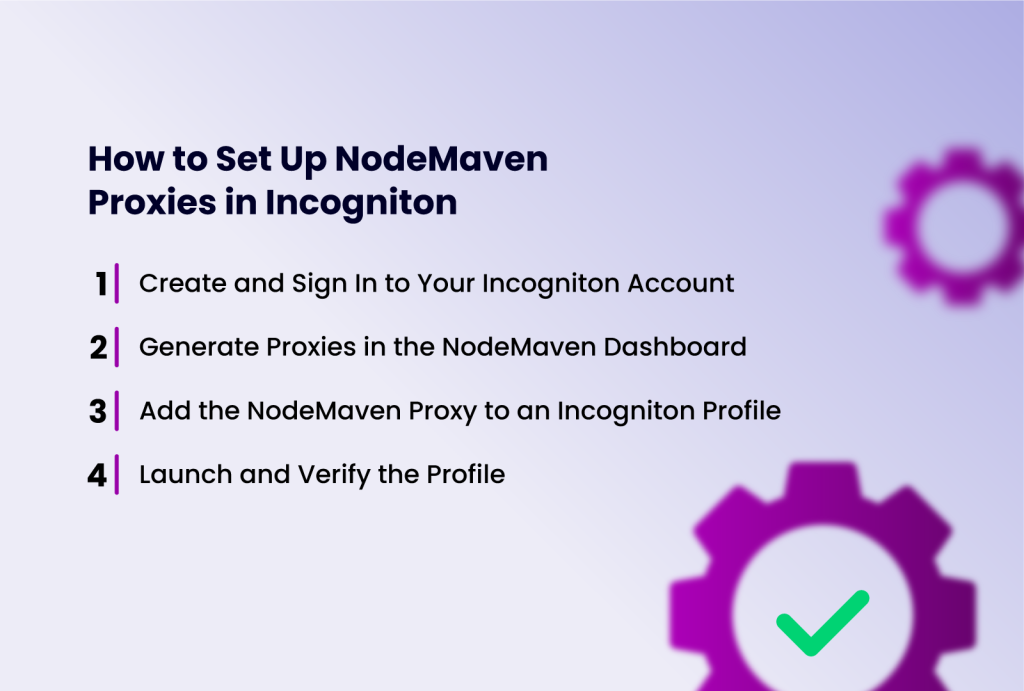
How to Set Up NodeMaven Proxies in Incogniton
For more detailed guides, Incogniton maintains detailed documentation on proxy configuration and profile management at docs.incogniton.com.
Setting up NodeMaven inside Incogniton follows the same proxy‑per‑profile approach used across Incogniton workflows. Each browser profile is assigned its own NodeMaven proxy, keeping browser identity and network identity clearly separated.
Step 1: Create and Sign In to Your Incogniton Account
Download and install Incogniton for your operating system (Windows or macOS) from the official site at Incogniton site. (Windows or macOS). Open the application and sign in to your Incogniton account. If you do not yet have an account, complete the registration process before continuing.
Step 2: Generate Proxies in the NodeMaven Dashboard
Log in to your NodeMaven account and navigate to the proxy setup section. Select the required proxy parameters, such as location, IP type (residential or mobile), and session behaviour (sticky or rotating).
Once configured, generate your proxies and copy the proxy string in the following format:
username:password@ip:port
Step 3: Add the NodeMaven Proxy to an Incogniton Profile
In Incogniton, open Profile Management and create a new browser profile or edit an existing one.
Navigate to the Proxy section and paste the NodeMaven proxy string, or manually enter the host, port, protocol, username, and password.
Use Check Proxy to verify the connection, then save the profile.
Step 4: Launch and Verify the Profile
Start the configured browser profile. Inside the profile, visit an IP‑checking service to confirm the expected IP address and location.
Once verified, the profile is ready for use with its own isolated browser environment and dedicated NodeMaven network identity. NodeMaven also provides guided setup materials tailored for Incogniton, allowing most users to complete onboarding in a few minutes.
Practical Benefits
When Incogniton and NodeMaven are used together, browser profiles can be reused without frequent session resets, geographic routing can be aligned more closely with the intended region, and browser identity remains independent from network configuration.
In practice, this combination is used across affiliate marketing, e‑commerce account operations, ad verification, data collection, agency work, QA and testing, and browser‑based automation, where profiles need to remain isolated, stable, and reusable across multiple sessions.
Conclusion
NodeMaven is a strong fit for multi‑account workflows that depend on a stable network identity rather than frequent IP churn. Paired with Incogniton, it allows browser profiles to remain consistent while the network layer is managed independently.
This division of responsibility makes long‑running, profile‑based workflows easier to scale and maintain as operational complexity grows.